Date/version: 2003 08 28 00
This document describes the fruits of my on and off year-long quest at printing to fifflo@mandolin from my Linux workstation. I finally succeeded with the CUPS. Other methods worked halfway, allowing me to prolong my suffering. This document is intended to provide a pointer to resources about Linux printing (all of which were quite helpful). Printing from Linux has never been an easy chore for me, and I suspect that there are only very few who encounter no problems whatsoever.
Please note that these instructions, while they should be broadly applicable, work for my Redhat Linux 7.3, kernel 2.4.18 box with a standard set of printer drivers and a standard install of CUPS 1.1.x. I cannot make any promises with respect to your specific configuration. Note that I'm trying to print to fifflo, which is currently an HP LaserJet 8150 DN, and LinuxPrinting.org claims this printer is supported perfectly.
Before I describe what worked for me, here are some links to good information about linux printing:
Information in this section is subject to change.
	mandolin.cs.columbia.edu is currently the print server.

	mandolin's current IP address is: 128.59.16.30

	foobar@mandolin foobar[501]$ uname -a
	Linux mandolin.cs.columbia.edu 2.2.21-1cucs #1 Tue May 21 15:45:33 EDT 2002 i686 unknown
	fifflo is an HP LaserJet 8150 printer
	copyrm is an HP LaserJet 8000 printer
CUPS was the solution that finally had me printing. First, a link to RedHat's guide to setting up CUPS. I found the local CUPS documentation installed on my workstation to be very helpful. (http://localhost:631/documentation.html)
First, make sure that the cupsd is running:
[joe@computer joe]$ netstat -an | grep 631
tcp        0      0 0.0.0.0:631             0.0.0.0:*               LISTEN
udp        0      0 0.0.0.0:631             0.0.0.0:*
[joe@computer joe]$ ps -el | grep cupsd
140 S     0 19341     1  0  75   0    -  1376 schedu ?        00:00:02 cupsd
[root@computer joe]$ /etc/rc.d/init.d/cups start
Starting cupsd:                                            [  OK  ]
[root@computer joe]$
http://localhost:631/admin
	name: fifflo
	location: mandolin.cs.columbia.edu
	description: 5th floor csb hp laserjet 8150
lpd://mandolin.cs.columbia.edu/fifflo
If things do not appear to work right away, restart cupsd.
[root@computer joe]# /etc/rc.d/init.d/cups restart
Stopping cups:                                             [  OK  ]
Starting cupsd:                                            [  OK  ]
[root@computer joe]#
[joe@computer joe]# lpstat -d
system default destination: fifflo
[joe@computer joe]# lpstat -p
printer copyroom is idle.  enabled since Jan 01 00:00
printer fifflo is idle.  enabled since Jan 01 00:00
[joe@computer joe]$ lpstat -p -d
lpstat: Unable to connect to server: Connection refused
ServerName computer.cs.columbia.eduIn cupsd.conf, I added the following directive to the <Location /> section:
Allow From 128.59.my.ipaddr
Printtool (now printconf) is the standard way to set up printing on RedHat boxes. Just invoke "printconf-gui" from the command line (you'll need to be root or enter the root password):
[michael@fae michael]$ printconf-gui &The printconf GUI will pop up:
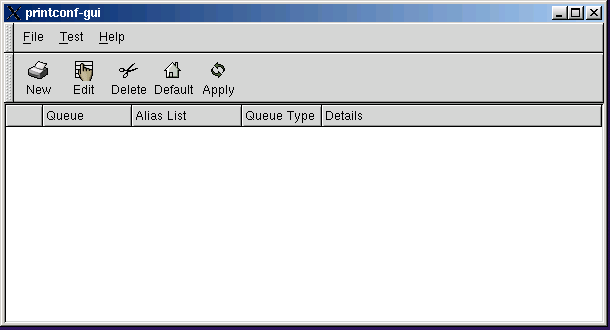
A detailed document from RedHat describes how to use PrintConf for RedHat 8.0.
This is a step-by-step tutorial on using printconf for RedHat 7.3.
Select "New" to create a new printer. A wizard walks you through the steps.
You can also connect to mandolin via the smbclient program. First, we can list the services that mandolin runs (just hit enter when prompted for the password):
[joe@computer joe]$ smbclient -L mandolin.cs.columbia.edu
added interface ip=128.59.xx.xx bcast=128.59.xx.xx nmask=255.255.248.0
Password:
Domain=[CUCS] OS=[Unix] Server=[Samba 2.0.10]

        Sharename      Type      Comment
        ---------      ----      -------
        printer$       Disk
        ntdriver       Disk
        drivers        Disk
        printers       Printer
        deanpr.seas    Printer
        academic       Printer
        adminpr        Printer
        busoff         Printer
        chair          Printer
        copyroom       Printer
        crfpr          Printer
        dccpr          Printer
        fifflo         Printer
        frooff         Printer
        pr             Printer
        prism          Printer
        psl            Printer
        psllab         Printer
        puertorico     Printer
        rainbow        Printer
        schedule       Printer
        slab           Printer
        storm          Printer
        slrp           Printer
        spf45          Printer
        ticket         Printer
        wslrp          Printer
        zenith         Printer
        aurora         Printer
        misc_tmp       Disk
        IPC$           IPC       IPC Service (Samba Print Server)

	... (other information omitted)
[joe@computer joe]$ smbclient //mandolin.cs.columbia.edu/fifflo -U nobody -N -P
added interface ip=128.59.xx.xx bcast=128.59.xx.xx nmask=255.255.248.0
Domain=[CUCS] OS=[Unix] Server=[Samba 2.0.10]
smb: \> help
?              altname        archive        blocksize      cancel
cd             chmod          chown          del            dir
du             exit           get            help           history
lcd            link           lowercase      ls             mask
md             mget           mkdir          more           mput
newer          open           print          printmode      prompt
put            pwd            q              queue          quit
rd             recurse        rename         rm             rmdir
setmode        symlink        tar            tarmode        translate
!
smb: \> printmode text
the printmode is now text
smb: \> print /home/joe/sample.txt
This is line 1.
	This is line 2.
		This is line 3.
This route never worked for me, but it may work for you. The KDE printer manager is basically equivalent to the RedHat printconf tool, and allows you to select the type of print subsystem (CUPs, remote LPD, SMB, etc.) Only CUPS is well supported, which means you should probably just follow the directions for setting up CUPS.
The KDE printing website contains all the information you'll need about the entire KDE printing system (which includes the printer manager).
You can find the KDE Printer Manager in the KDE Control Center, under the System subtree. There is an add-printer wizard, much like printconf-gui.
This document described how to print to the Columbia CS Department printers being served off mandolin, specifically fifflo, from a RedHat Linux box. You should of course use the appropriate printer for your location. Please send any comments, suggestions, corrections or additions to crf@cs or locasto@cs.